The Work Nobody Talks About
There’s a version of your workday that actually moves your business forward — strategic decisions, client relationships, creative thinking, problem-solving.
And then there’s the other version. The one that actually fills most hours.
Copy-pasting data between systems. Chasing invoice approvals. Sending the same follow-up email for the fifth time this week. Reformatting reports that have the same structure every single time. Scheduling meetings that require three rounds of back-and-forth before anyone lands on a time.
This is the work nobody hired you to do. It’s also — if you’re honest about it — the work that eats anywhere from 30% to 60% of the average business team’s productive hours.
That number isn’t an exaggeration. Studies on workplace productivity consistently find that knowledge workers spend more than half their time on tasks that could be automated or significantly accelerated with the right tools. Tasks that require no strategic judgment. Tasks that a well-built system could handle without a human in the loop at all.
Here’s the thing: the technology to fix this isn’t experimental anymore. It’s not expensive. It doesn’t require a technical team or a six-month implementation project.
What it does require is a systematic approach. Knowing which tasks to target, in what order, and how to actually build the automations that replace them.
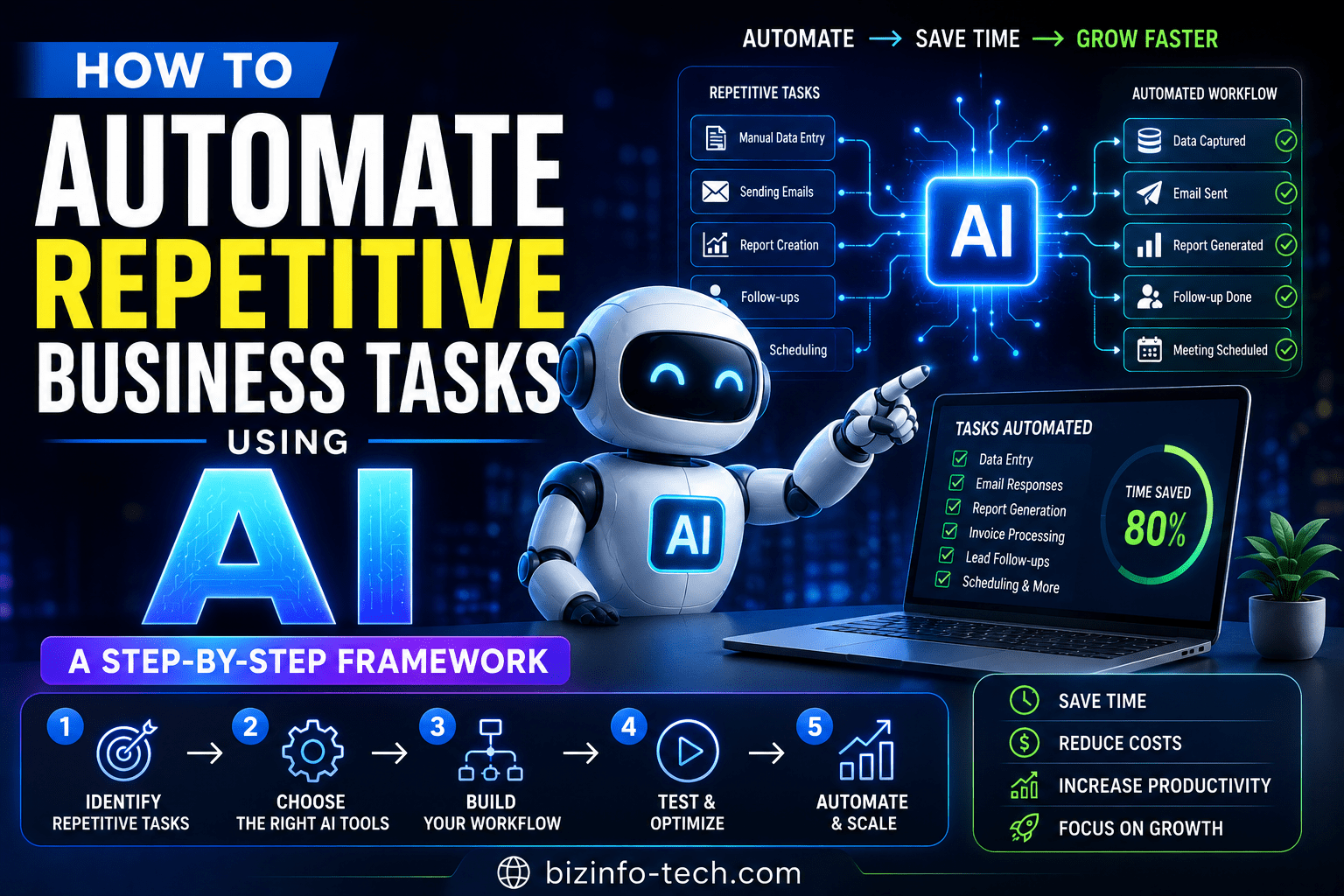
That’s exactly what this guide is going to walk you through — a practical, step-by-step framework for identifying and automating the repetitive tasks in your business using AI, starting this week.
Why Most Businesses Are Still Doing This Manually
Before we get into the how, it’s worth understanding the why.
If automation is this accessible and this valuable, why are so many businesses still grinding through manual, repetitive work every day?
A few reasons come up consistently.
“We’ve always done it this way.”
Manual processes get baked into the culture of a business. People learn the workarounds. They build personal systems around the inefficiencies. After a while, the inefficiency becomes invisible — just the way things work around here.
“It’s faster to just do it myself.”
This is probably the most common trap. Setting up an automation takes time upfront. Doing the task manually takes 10 minutes. When you’re busy, the 10-minute option wins — every single time. The problem is that this calculus ignores compounding. That 10-minute task done five times a week is 43 hours a year. One afternoon building the automation saves all of it.
“I don’t know where to start.”
This is the honest one. The AI and automation tool landscape is overwhelming. There are hundreds of options, the terminology is confusing, and it’s genuinely unclear which tools are worth the learning curve and which aren’t.
This guide is designed to solve that last problem specifically. By the end, you’ll have a clear framework for where to start, how to prioritize, and how to actually build automations that stick.
Step 1: Run a Repetitive Task Audit
You can’t automate what you haven’t identified. The first step is a structured audit of where your team’s time is actually going.
How to Do It
Block one week — just one — and do this simple exercise.
Every time you or a team member performs a task that is:
- Done the same way more than once
- Doesn’t require significant judgment or creativity
- Involves moving information from one place to another
- Could theoretically be described in a written procedure
…write it down.
Don’t filter. Don’t decide in the moment whether it’s automatable. Just capture it. Use a shared spreadsheet, a running note in Notion, a voice memo — whatever creates the least friction.
By the end of the week, you’ll have a list that probably surprises you. Most teams uncover 20–40 distinct repetitive tasks when they do this honestly. Many of them have been running in the background so long that nobody thinks of them as problems anymore. They’re just the job.
Categories to Look For
To make your audit more systematic, here are the most common categories where repetitive tasks live:
Data movement tasks — copying information from one system to another, updating records, logging activities, syncing data between tools
Communication tasks — sending follow-up emails, status updates, reminders, notifications, confirmations
Reporting tasks — compiling data into reports, generating summaries, creating dashboards, sending weekly updates
Scheduling tasks — booking meetings, sending calendar invites, rescheduling, managing availability
Document tasks — creating documents from templates, formatting, filing, organizing, naming conventions
Approval tasks — routing requests for review, following up on pending approvals, notifying stakeholders of decisions
Intake tasks — processing form submissions, onboarding new contacts, qualifying leads, handling inbound requests
Most of the highest-value automation opportunities live in these categories.
Step 2: Score and Prioritize Your Task List
Not all repetitive tasks are equally worth automating. Before you start building anything, you need to rank your list by leverage.
The Three-Factor Scoring System
Score each task on three dimensions, each on a scale of 1–5:
Frequency (1–5): How often does this task happen?
- 1 = A few times a year
- 2 = Monthly
- 3 = Weekly
- 4 = Daily
- 5 = Multiple times per day
Time per Occurrence (1–5): How long does it take each time?
- 1 = Under 2 minutes
- 2 = 2–5 minutes
- 3 = 5–15 minutes
- 4 = 15–30 minutes
- 5 = Over 30 minutes
Complexity to Automate (1–5, inverted): How straightforward is this to automate?
- 5 = Very simple, one-step, clear trigger and action
- 4 = Simple, a few steps, well-defined inputs
- 3 = Moderate, requires some configuration
- 2 = Complex, requires custom logic or integration
- 1 = Very complex, lots of edge cases
Your automation priority score = Frequency × Time × Complexity
The highest scores are your starting point. A task that happens 10 times a day, takes 15 minutes each time, and is simple to automate should be at the top of your list. A task that happens twice a year and takes 30 minutes each time but is complicated to automate should be near the bottom.
A Realistic Example
Let’s say you run a small agency and your audit surfaces these tasks:
| Task | Frequency | Time | Complexity | Score |
|---|---|---|---|---|
| Send project status update to client | 4 (daily) | 3 (10 min) | 4 (simple) | 48 |
| Log call notes to CRM | 5 (multiple/day) | 2 (5 min) | 4 (simple) | 40 |
| Create invoice from project template | 3 (weekly) | 4 (20 min) | 4 (simple) | 48 |
| Schedule onboarding calls | 4 (daily) | 3 (10 min) | 5 (very simple) | 60 |
| Compile monthly performance report | 2 (monthly) | 5 (45 min) | 2 (complex) | 20 |
Based on this scoring, scheduling onboarding calls is the highest-leverage automation to build first — high frequency, meaningful time per occurrence, and simple to set up.
This is the approach. Run the numbers, let the math guide your priorities, and stop letting the squeakiest wheel determine where you spend your time.
Step 3: Understand the Building Blocks of Business Automation
Before you start building automations, you need to understand the three core concepts that underlie all of them. These are simple once you see them clearly.
Triggers
A trigger is the event that starts an automation. Something happens — and that something kicks off the sequence.
Common triggers:
- A form is submitted
- An email arrives with a specific subject or from a specific sender
- A deal moves to a new stage in your CRM
- A date or time is reached
- A file is added to a folder
- A task is marked complete
Every automation starts with a trigger. If you can’t define a clear trigger, you don’t have an automation — you have a manual process.
Actions
An action is what the automation does when the trigger fires. Most automations involve a sequence of actions.
Common actions:
- Send an email
- Create a record in your CRM
- Add a row to a spreadsheet
- Create a task in your project management tool
- Send a Slack message
- Generate a document from a template
- Schedule a calendar event
- Update a field in a database
The power of modern automation platforms is that they can chain these actions together — so one trigger fires a sequence of five, ten, or twenty actions across multiple different tools.
Conditions
Conditions are the logic that makes automations smart — the “if this, then that” rules that route the automation down different paths based on the data it’s working with.
Examples:
- If the lead score is above 80, assign to Senior Sales. If below 80, add to nurture sequence.
- If the invoice is overdue by more than 14 days, send the escalation template. If 7–14 days, send the reminder template.
- If the form submission is from an existing customer, route to account management. If new, route to sales.
Conditions are what separate basic automations (which anyone can build) from sophisticated workflows (which handle edge cases and exceptions intelligently).
Once you understand triggers, actions, and conditions, you can design virtually any automation on paper before you ever open a tool.
Step 4: Choose the Right Automation Tools
There are a lot of automation tools on the market. Here’s a practical breakdown of the categories and what each is best for.
Workflow Automation Platforms
These are the foundational tools for connecting your existing business software and building automated workflows between them.
Zapier — The most widely used and beginner-friendly automation platform. Connects thousands of apps. Best for straightforward, trigger-action automations. Excellent documentation and a huge library of pre-built templates.
Make (formerly Integromat) — More powerful and flexible than Zapier, with visual workflow builders that handle complex branching logic and multi-step scenarios. Steeper learning curve but significantly more capable for sophisticated workflows.
n8n — Open-source and self-hostable. Excellent for technical teams that want full control and customization. Free to self-host, which can make it very cost-effective at scale.
For most small businesses getting started, Zapier is the right first choice. Once you’ve built some simpler automations and understand the concepts well, Make is worth exploring for more complex workflows.
AI-Powered Automation Platforms
A newer category that combines traditional workflow automation with AI capabilities.
Relevance AI — Build AI-powered workflows and agents that can handle tasks requiring judgment, not just rule-based execution.
Bardeen — Browser-based automation that can interact with web apps directly. Strong for research, prospecting, and scraping workflows.
Clay — Excellent for sales and marketing workflows that need to combine data from multiple sources with AI enrichment.
Task-Specific AI Tools
Beyond general automation platforms, there are excellent AI tools built for specific task categories:
For scheduling: Calendly, Cal.com, Motion (AI-powered scheduling that optimizes your calendar automatically)
For email: Superhuman (AI-powered email triage), SaneBox (AI email filtering), or AI writing integrations in Gmail
For CRM data entry: Many modern CRMs (HubSpot, Salesforce) now have AI features that log calls, summarize meetings, and update records automatically
For document creation: Notion AI, Document automation tools like PandaDoc or Docupilot for template-based document generation
For reporting: Rows.com, Metabase, or Looker Studio for automated reporting dashboards
What to Use When
You don’t need all of these. Start with one workflow automation platform (Zapier if you’re new to this) and one or two task-specific AI tools for your highest-priority use cases. Get real value from those before adding more.
The goal is a lean, well-integrated stack — not a collection of half-used subscriptions.
Step 5: Build Your First Automation (A Practical Walkthrough)
The best way to learn automation is to build one. Let’s walk through a complete example from start to finish: automating the new lead intake and follow-up process.
This is one of the most common and highest-value automations for small businesses, and it’s a great first project because it’s immediately visible and measurable.
The Manual Version (What You’re Replacing)
Today, when a lead fills out your contact form, here’s what typically happens:
- You get a notification email
- You manually review the form submission
- You look up whether this person is already in your CRM
- You manually add them as a contact if they’re new (or update the record if they’re not)
- You write and send a personalized-ish reply email
- You create a task for yourself to follow up in a few days
- You add a note about them to a spreadsheet or CRM
- You forget about the follow-up task because something else came up
This whole process takes 10–20 minutes per lead and is riddled with failure points. Leads fall through the cracks. Follow-ups are inconsistent. The CRM is always out of date.
The Automated Version (What You’re Building)
Here’s the same process, automated:
Trigger: New form submission on your website contact form
Action 1: Check if contact already exists in CRM (by email address)
Condition: If yes → update existing record. If no → create new contact.
Action 2: Add tags or properties to the contact record based on form fields (What service are they interested in? What’s their company size? How did they hear about you?)
Action 3: AI tool scores the lead based on your ideal customer profile criteria and adds the score to the CRM
Condition: If lead score is above threshold → assign to a specific sales rep and create a high-priority task. If below threshold → add to nurture email sequence.
Action 4: Send immediate, personalized confirmation email using a template that pulls the lead’s name and the specific service they inquired about from the form data
Action 5: Create follow-up task in your project management tool, automatically assigned and due in 24 hours
Action 6: Send Slack notification to the relevant team member with key lead details
Total human time required after setup: 0 minutes.
The lead is captured, qualified, entered in your CRM, sent a confirmation email, and has a follow-up task created — all within seconds of submitting the form.
How to Actually Build This in Zapier
Step 1: Go to Zapier and create a new Zap
Step 2: Set your trigger — select your form tool (Typeform, Google Forms, JotForm, your website contact form) as the trigger app, and choose “New Form Submission” as the trigger event
Step 3: Connect your CRM (HubSpot, Salesforce, Pipedrive, etc.) as your first action and map the form fields to the corresponding CRM fields
Step 4: Add your email tool as the next action, choose your confirmation email template, and use the dynamic field variables to personalize it with the submitter’s name and inquiry details
Step 5: Add your project management tool (Asana, Trello, ClickUp, etc.) as the next action and create the follow-up task with the lead’s details
Step 6: Optionally add a Slack notification action to alert your team
Step 7: Test with a real form submission, confirm everything fires correctly, and turn it on
The whole build takes 1–2 hours the first time. After that, it runs forever with zero manual involvement.
Step 6: Apply the Framework to Your Top 10 Repetitive Tasks
Once you’ve built your first automation and experienced what it feels like to have a process run itself, the momentum usually takes over. Here are the most common high-value automation scenarios for small businesses and how to approach each.
1. Meeting Scheduling
The manual version: Back-and-forth emails to find a time, send calendar invite, maybe a confirmation email.
The automated version: A scheduling tool like Calendly lets people book directly into your calendar based on your real availability. No back-and-forth. The confirmation, reminder, and follow-up emails are sent automatically.
Tool to use: Calendly or Cal.com (free), with Zapier to trigger actions when bookings happen.
Time saved: 15–30 minutes per meeting scheduled.
2. Invoice Generation and Follow-Up
The manual version: Create invoice in accounting tool, send to client, manually follow up if unpaid after 30 days.
The automated version: When a project is marked complete in your project management tool, an automation creates the invoice in your accounting tool and sends it to the client automatically. If unpaid after 7 days, an automated reminder goes out. After 14 days, an escalation email.
Tool to use: Zapier + your project management tool + QuickBooks or FreshBooks.
Time saved: 20–45 minutes per invoice cycle.
3. Lead Nurture Sequences
The manual version: Manually email leads who haven’t converted yet, trying to remember where each one is in the conversation.
The automated version: When a lead doesn’t book a call within 48 hours of initial contact, they automatically enter a nurture email sequence — a pre-written series of emails sent over days or weeks that provide value and keep you top of mind.
Tool to use: Your email marketing platform (Mailchimp, ConvertKit, ActiveCampaign) with automation features, or HubSpot’s free CRM.
Time saved: Several hours per week for high-volume lead pipelines.
4. Client Onboarding
The manual version: New client signs contract, you manually send welcome email, set up project folder, create tasks, send them questionnaire, schedule kickoff call.
The automated version: Contract signed triggers a webhook that fires an automation sequence — welcome email sent, project folder created from template, onboarding tasks assigned, questionnaire sent, and kickoff call scheduling link included. All within 30 seconds of the signature.
Tool to use: DocuSign or PandaDoc (for contract signing trigger) + Zapier + your project management tool.
Time saved: 45–90 minutes per new client.
5. Weekly Reporting
The manual version: Pull data from three or four different tools, paste it into a template, format it, add commentary, email it to stakeholders.
The automated version: A scheduled automation pulls data from your tools on a set schedule, populates a reporting template, and sends the completed report to your stakeholders automatically.
Tool to use: Google Sheets + Zapier for data aggregation, or a dedicated reporting tool like Databox or Klipfolio that connects directly to your data sources.
Time saved: 1–3 hours per reporting cycle.
6. Social Media Posting
The manual version: Write post, log into each platform, upload image, post, repeat for each channel.
The automated version: Write content once in a tool like Buffer or Hootsuite, schedule it across all your channels simultaneously, with automatic resizing and formatting for each platform.
Tool to use: Buffer, Hootsuite, or Later.
Time saved: 30–60 minutes per posting session.
7. Customer Support Ticket Routing
The manual version: Support email arrives in shared inbox, someone reads it, decides who should handle it, manually forwards or assigns.
The automated version: Incoming support emails are analyzed by an AI tool that categorizes them by topic and urgency, routes them to the appropriate team member, and sends an automatic acknowledgment to the customer.
Tool to use: Intercom, Zendesk, or Front — all have AI-powered routing features.
Time saved: Variable, but significant at any reasonable support volume.
8. Data Entry and CRM Updates
The manual version: Sales rep gets off a call, manually logs notes, updates deal stage, adds next steps to CRM.
The automated version: Call recording tool transcribes the call, AI summarizes key points and next steps, CRM is updated automatically with the summary and a follow-up task.
Tool to use: Gong, Chorus, or Otter.ai for call recording and transcription + CRM integration.
Time saved: 10–20 minutes per sales call.
9. Employee Onboarding
The manual version: New hire accepted offer, HR manually sends paperwork, IT manually sets up accounts, manager manually sends first-day information.
The automated version: Offer acceptance triggers a workflow that sends onboarding documents, creates email and tool accounts, assigns onboarding tasks, and schedules orientation meetings — all automatically.
Tool to use: BambooHR, Rippling, or a custom Zapier workflow.
Time saved: 3–5 hours per new hire.
10. Content Repurposing
The manual version: Write a blog post, then separately write a social caption, an email newsletter excerpt, and a LinkedIn post from the same content.
The automated version: Write your long-form content once, then use AI tools to automatically generate social media captions, email subject lines, and short-form adaptations in your brand voice.
Tool to use: Claude, ChatGPT, or a dedicated content repurposing tool like Repurpose.io.
Time saved: 30–60 minutes per piece of content.
Step 7: Build Maintenance and Oversight Into Your System
Automations aren’t set-and-forget forever. They need occasional maintenance — and smart oversight so you catch failures before they create problems.
Set Up Failure Alerts
Every automation platform has error logging and alerting features. Set them up. When an automation fails — because an API changes, a field name gets updated, or a connected tool goes down — you want to know immediately, not three weeks later when you notice that leads have been disappearing.
In Zapier, turn on error notifications. In Make, set up error handlers on your scenarios. In any automation you build, ask: what happens when this fails? Build the answer into the system.
Build in Human Checkpoints for High-Stakes Actions
Not every action should be fully autonomous. For high-stakes actions — sending a contract, issuing a refund, making a significant purchase — build in a human approval step. The automation can prepare everything, but a human reviews and confirms before it fires.
This gives you the speed and consistency benefits of automation while keeping appropriate human oversight on decisions that matter.
Do a Monthly Automation Audit
Once a month, spend 30 minutes reviewing your active automations:
- Are they still running correctly?
- Are the connected tools still current?
- Are there new tasks you could add to the system?
- Are any automations creating outcomes you didn’t intend?
This doesn’t have to be formal or elaborate. A simple check of your automation platform’s task history, a quick scan for errors, and a few minutes thinking about what else could be automated will keep your system healthy and growing.
The Mindset Shift That Makes All of This Work
Here’s something that separates the businesses that successfully implement automation from the ones that buy tools and never really change how they work.
It’s a mindset shift from “how do I do this task?” to “how do I build a system that handles this task?”
Every time you find yourself doing something repetitive, the right question isn’t “what’s the fastest way to do this right now?” It’s “should this ever require a human again?”
That shift — from task executor to system builder — is what compounds over time. Each automation you build reduces your ongoing workload and creates space to build the next one. Within a year, the average business that takes this seriously has recovered hundreds of hours of annual productive capacity. Within two years, that advantage is a genuine operational moat.
The businesses winning in 2026 aren’t necessarily the ones with the best products or the biggest teams. They’re the ones that have built the most intelligent, efficient systems underneath everything else.
And here’s the honest truth: that advantage is available to any business willing to put in the upfront work to build it.
Where to Start (Right Now)
If you’ve read this far and you’re ready to actually start, here’s your action plan for this week.
Day 1–2: Run your repetitive task audit. Capture every task that fits the criteria. Get your team involved — the people doing the work every day will surface things you’d never think of.
Day 3: Score and prioritize your task list using the three-factor framework. Identify your top three automation opportunities.
Day 4: Sign up for Zapier (the free plan is enough to start). Browse the template library for your highest-priority task — there’s a very good chance a pre-built template already exists for it.
Day 5: Build your first automation. Start simple. Test it. Confirm it works. Then turn it on and leave it running.
That’s it. One automation, one week. Measure the time it saves over the next month. Then build the next one.
The compounding starts from the first automation you complete. The only mistake you can make at this point is waiting to start.
Frequently Asked Questions
Do I need technical skills to automate business tasks?
No. The tools available today — Zapier, Make, Calendly, and most AI productivity tools — are designed for non-technical users. If you can use a smartphone and follow a recipe, you have the skills to build effective automations.
How long does it take to see results?
The first automation you build should save time immediately. Most businesses see meaningful impact within the first week — and significant ROI within the first month.
What if an automation makes a mistake?
Automations can and do make mistakes, especially early on. This is why testing before going live is important, why you should start with lower-stakes processes, and why you should build in human checkpoints for high-stakes actions. The error rate for well-built automations is dramatically lower than for manual processes — but the key word is “well-built.”
Is it worth automating processes that only take a few minutes?
It depends on frequency. A 3-minute task that happens 20 times a day is consuming an hour of daily capacity — 250 hours per year. That’s absolutely worth automating. A 3-minute task that happens once a week probably isn’t your top priority.
What’s the biggest mistake people make with automation?
Trying to automate everything at once. Start with your top priority, build it properly, and let it run before moving to the next one. Quality over quantity, especially at the beginning.
Final Thought
The businesses that operate most efficiently in 2026 aren’t running on willpower and extra hours. They’re running on systems.
The repetitive, time-consuming work that fills up so much of your team’s day isn’t inevitable. It’s a design problem — and design problems have design solutions.
You now have the framework. The tools exist. The ROI is clear.
The only thing left is to start.
Pick one task from your list. Build one automation. See what happens.
Then build the next one.
Related reads: The Ultimate Guide to AI for Business Operations | AI Workflows for Small Businesses: 15 Processes You Can Automate Today | What Is AI Business Automation?